Showing posts with label firefox addons. Show all posts

Wednesday, September 3

My experiments with Google Chrome -1

I just installed the chrome and started experimenting it. Based on my earlier posts on Add-ons, extensions, profile usage, browser features... one can understand how much I use/love the Firefox browser. As soon as installed the chrome, I started looking for the same. But then I realised it might take some time before I could notice the features that I am fond of.

profile usage:
I extensively make use of this profile feature. I create multiple profiles, based on my work.
  • To create new firefox extension.
  • To test the extensions.
  • For office work.
  • ...
  • ...
Importing bookmarks:
Though I prefer using stumble to bookmark my favorite pages, for quick reference I store some on Firefox bookmark tool bar. When I tried with chrome, it had imported bookmarks randomly from one of the firefox profiles.

Addon's:
I feel the usability of browser increases with these add-on's, extensions.

Friday, July 4

Firefox Extensions - Set as Startup Page(s)


A quick fix for this extension. The latest version will have the options set in context menu(i.e, on mouse right click) and under Tools menu options. The button from the status bar is removed now.
Thanks to Prashant for his feedback and I will implement the suggestions in future releases.


Download Extension
We browse umpteen number of sites/pages across the internet everyday. If you like them and you want to keep the selection as startup pages for your browser (FF), you have to change the options manually.

I thought (as most users feel!) it was not convenient and so I ventured to make it as simple extension. Well if you are like me then, "Set as StartUp Pages" is one such simple and profound extension which would let you set the startup pages with a simple button click from your status bar.

How it works?

1. Install the extension.

2. Restart the browser instance.

3. You will find a button "Set Homepage(s)" in statusbar.

Correction:
Button from status bar removed.
Options are visible in Tools menu and context menubar.


4. Browse across pages in as many tabs you want.

5. Click the button to set them as startup pages.

6. An alert message would confirm the above step.

7. Clicking on 'Home' icon, you can see the implementation.


Set As Startup Page(s) - Download

For next release:

1. Option to set the pages just on mouse right click.

2. Help page with instructions.

3. To improvise the alert/confirmation message.


Note: I would like to get your feedback before I submit to Mozilla Add-ons repository.

Set As Startup Page(s) - Download

Thursday, March 13

Firefox Profile Manager

I am fond of using the one of the key feature of Firefox browser i.e., Profile Manager. For developers especially, it means not to mess up our work.
I prefer to use each different profile for the different extensions/add ons that I am working on for Firefox browser and not to mess up these with my default profile which I mail use for browsing and mailing purposes.
For the benefit of first timers, profiles can be created (in Windows) from the run command window
I run teh command
  • firefox.exe -P
  • firefox.exe -profilemanager

With Minefield (Firefox 3.0*) around we need to start our development/testing even on Minefield apart from regular FF2.0*. Now the same old commands of creating profiles firefox would not work...
Since the minefield is intalled, and being latest the above commands would result in creating profiles in the Minefield but not into the Firefox. There is another command which many might have forgotten:

  • "C:\Program Files\Mozilla Firefox\firefox.exe" -profilemanager
  • "C:\Program Files\Minefield\firefox.exe" -profilemanager

Thanks to my friend Aruna, whose query had made me dig into Profile Manager of Mozillazine Knowledge base and resulted in writing this post.

Wednesday, December 13

Mozilla Extensions #5 : Usuability

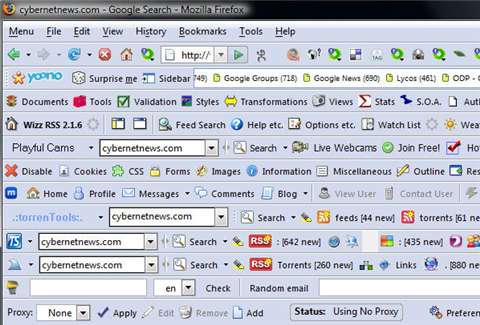
Today, one of my collegues has sent out a mail that contains snapshot of Mozilla browser after installing various plugins that comes with Mozilla. It was really funny...

Mozilla - Loaded with extensions

I think extension developers should give an option such as orkut plugin, where an icon is displayed on status bar when you click on it you get the tool bar on top and icon in the status bar goes off. This type of toggling will definitely improve the usuability of the plug-in and the scenario shown here will not occur.

Friday, December 8

Mozilla Extensions #4 : My Stickies

Around starting of the year (January - 2006), I heard about one-liner saying "Goodbye to Bookmarks, stickies are here!" (something like that...)
[Stickies What is this? MyStickies is a javascript script that can draw notes on web pages and tag them. The notes are saved to an online account and whenever you come back to the page, the notes will load back up.]
I signed up for this and used it now and then. I felt there should be some other way where we can use it to the maximum extent possible. But this december (after quite a long time)when I logged into this, I was welcomed with a note -" It seems that you haven't installed the Browser Extension on this computer yet. In order to place notes on pages outside of mystickies you will need this or the bookmarklet below. "

Here it is My Stickies extension for my favorite Mozilla browser.
It is really cool one to use, this extension gives you a toolbar that gives the options to add note and so on. And few transparent arrows will be seen on right bottom of the webpage. Once you add any note to the particular website, there will be a slider that comes on mouse over of these arrows giving away the note you have given to that particular website.
Why to wait, get the extension and say bye to the Bookmarks.

Thursday, August 24

Long URL's ! - No More!

How often you email the url's of the websites to your friends?
Say while you are browsing through Amazon, eBay you found an interesting book or gadget that you want to share with your friends, and these url's will be very very long (probably running into 2-3 lines). To avoid these url's running into more than 1 line the best way is to cut short the URL. Many websites provide us with this option like TinyURL , SnapURL, URLci, URLsaw ,...
For Mozilla lovers here are few Mozilla Addons.
TinyURL
URLci
No more long url's!

Friday, June 16

Mozilla Extensions #3

I surely think the previous posts of mine Mozilla Extension #1 and Mozilla Extensions #2 was of some help and this link was dugg good number of times. I got inspired by this and I am continuing to post two more extensions that I felt very useful, and of course you surely love them.
Many are interested in becoming members of many sites we all are aware when regestering to any site it surely requires name or E-mail id. I have both my user names and mail id's long. So I found this extesnion PasteEmail which saves the mail id and up to 15 text fields, and you can paste them by right clicking on the field while filling up the form. Thanks to ChuckBaker You can preview the PasteEmail.

Cool iris - why clicking?

When we search through ask.com, we find a binocular icon that gives a preview of the content without actually clicking on it.

Cooliris is a set of free browser extensions that give you the power to quickly preview the underlying content of links without clicking. Simply rest your mouse over a link and see the content immediately. No more clicking back and forth!
Check out more previews.
Get one for your Mozilla browser and say bye to clicking!

Wednesday, June 14

The stealth way to browse the Internet at work

Ghostzilla is a Web browser like Firefox, but it shows up and disappears instantly, discreetly, blended with your application -- any application -- so the Web pages look like part of it and not like the Web at all.


read more | digg story

Saturday, April 22

Mozilla Extensions #2

I think you all agree with me that developers working for the User Interface of the project may need to approach the Designers for some thing or other. At least I did approach for things like the size of the image, hex number of the particular color. I found these handy extensions of Mozilla, and they are really cool.

colorzilla:


What it does is, after downloading this extension a small icon will be displayed on status bar of browser. Once you click to on, and as we move the mouse over the page, corresponding color code (RGB) number is displayed in the status bar of the browser. Not only this, we can zoom the page that we are viewing and measure distances between any two points on the webpage. Know more about it from the home page.


MeasureIt:


On downloading this extension a MesureIt button will appear in the status bar or toolbar. Once you click to on, with the help of the mouse you choose any area, corner on the web page the dimensions of the selected portion will be displayed in terms of its width and height. To know more what MeasureIt is to offer, visit home page

Wednesday, April 19

Useful Extensions #1

What browser do you use? Internet Explorer, Netscape, Opera, Mozilla Firefox …. Whatever it may be, here I am going to mention how the Mozilla browser helps developers in tweaking more details of webpages. I had been using all the browsers that I had mentioned earlier.
Why only Mozilla? Last month I was asked to do some interesting task on how to build extensions to Mozilla Firefox. That is how I first came to know about these very useful concepts of Mozilla - Extensions. Really, many extensions are available with Mozilla to make a developers life really cool. Though all the Extensions are listed under the mozilla Extensions, I like to mention few extensions that I am making use daily to the full extent possible. Hope they will be helpful to you some way or other.

Web Developer 1.0.2 – This is really useful for the starters. This adds a menu and a toolbar with various web developer tools which looks like this:
medium_web_developer.jpg

Though you can try upon right now with this extension, I would like to say little functionality.
-> The 'Cookies' option allow you work on cookies related like deleting cookies, session cookies, viewing cookie information, adding cookies…
-> The 'CSS' option next to cookies provide how to edit css, display css, block css, Border and box model…
-> I will switch on to option 'Information' which is next to 'Images', this will give you information regarding to colors, fonts, anchors, links, element information, class and id details, table information …
-> The next is 'Outline' option, this is very helpful as it outlines all the Frame, table cells, tables, links, Elements that are presnet in the webpage. There is an option 'Outline Current Element' through mouse you can select the element.
Try out the Web Developer extension and see the change in your developing style.

Mozilla Extensions #1

What browser do you use? Internet Explorer, Netscape, Opera, Mozilla Firefox …. Whatever it may be, here I am going to mention how the Mozilla browser helps developers in tweaking more details of webpages. I had been using all the browsers that I had mentioned earlier.
Why only Mozilla? Last month I was asked to do some interesting task on how to build extensions to Mozilla Firefox. That is how I first came to know about these very useful concepts of Mozilla - Extensions. Really, many extensions are available with Mozilla to make a developers life really cool. Though all the Extensions are listed under the mozilla Extensions, I like to mention few extensions that I am making use daily to the full extent possible. Hope they will be helpful to you some way or other.
Web Developer 1.0.2 – This is really useful for the starters. This adds a menu and a toolbar with various web developer tools which looks like this:
medium_web_developer.jpg

Though you can try upon right now with this extension, I would like to say little functionality.
-> The 'Cookies' option allow you work on cookies related like deleting cookies, session cookies, viewing cookie information, adding cookies…
-> The 'CSS' option next to cookies provide how to edit css, display css, block css, Border and box model…
-> I will switch on to option 'Information' which is next to 'Images', this will give you information regarding to colors, fonts, anchors, links, element information, class and id details, table information …
-> The next is 'Outline' option, this is very helpful as it outlines all the Frame, table cells, tables, links, Elements that are presnet in the webpage. There is an option 'Outline Current Element' through mouse you can select the element.
Try out the Web Developer extension and see the change in your developing style.

Digg Story